

TK8 Download Guide for Android, iOS and Desktop Access
Table of Contents
- 1. How TK8 Download and App Access Work
- 2. TK8 Android Download Steps
- 3. TK8 iOS Access Steps
- 4. TK8 Desktop Download Steps for Windows
- 5. TK8 Desktop Download Steps for macOS
- 6. How to Open NEW TK8 Through TKASH
- 7. TK8 Download QR and Installation Safety
- 8. TK8 Download Troubleshooting
- 9. What to Do After Downloading
- 10. TK8 Download FAQs
How TK8 Download and App Access Work
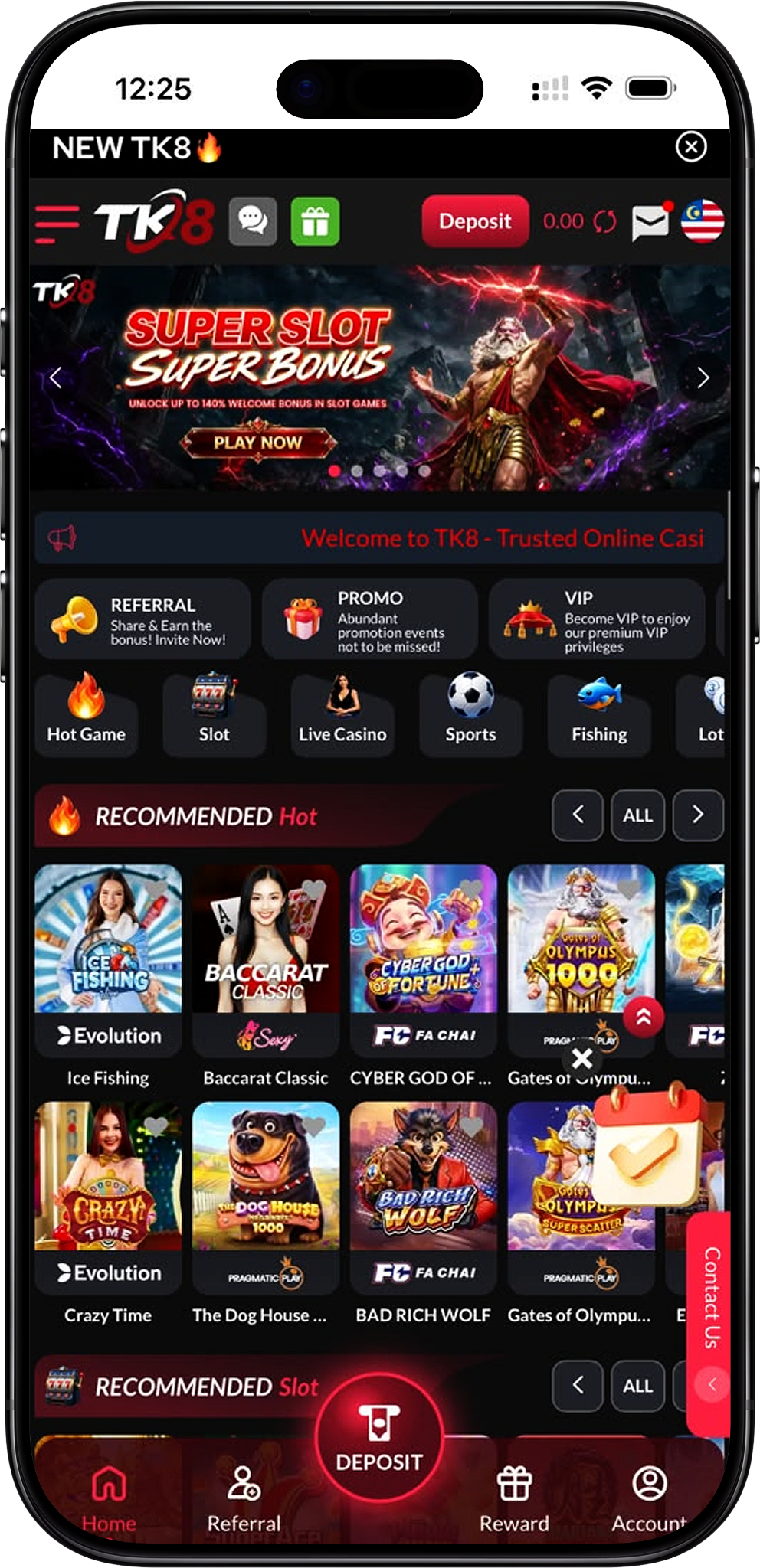
TK8 Download currently provides a direct Android APK route in the supplied download flow. Users on other supported operating systems can use the TKASH download options available from the landing page, install the version appropriate for their device and then open NEW TK8 from the TKASH Services section.
Direct Android App Availability
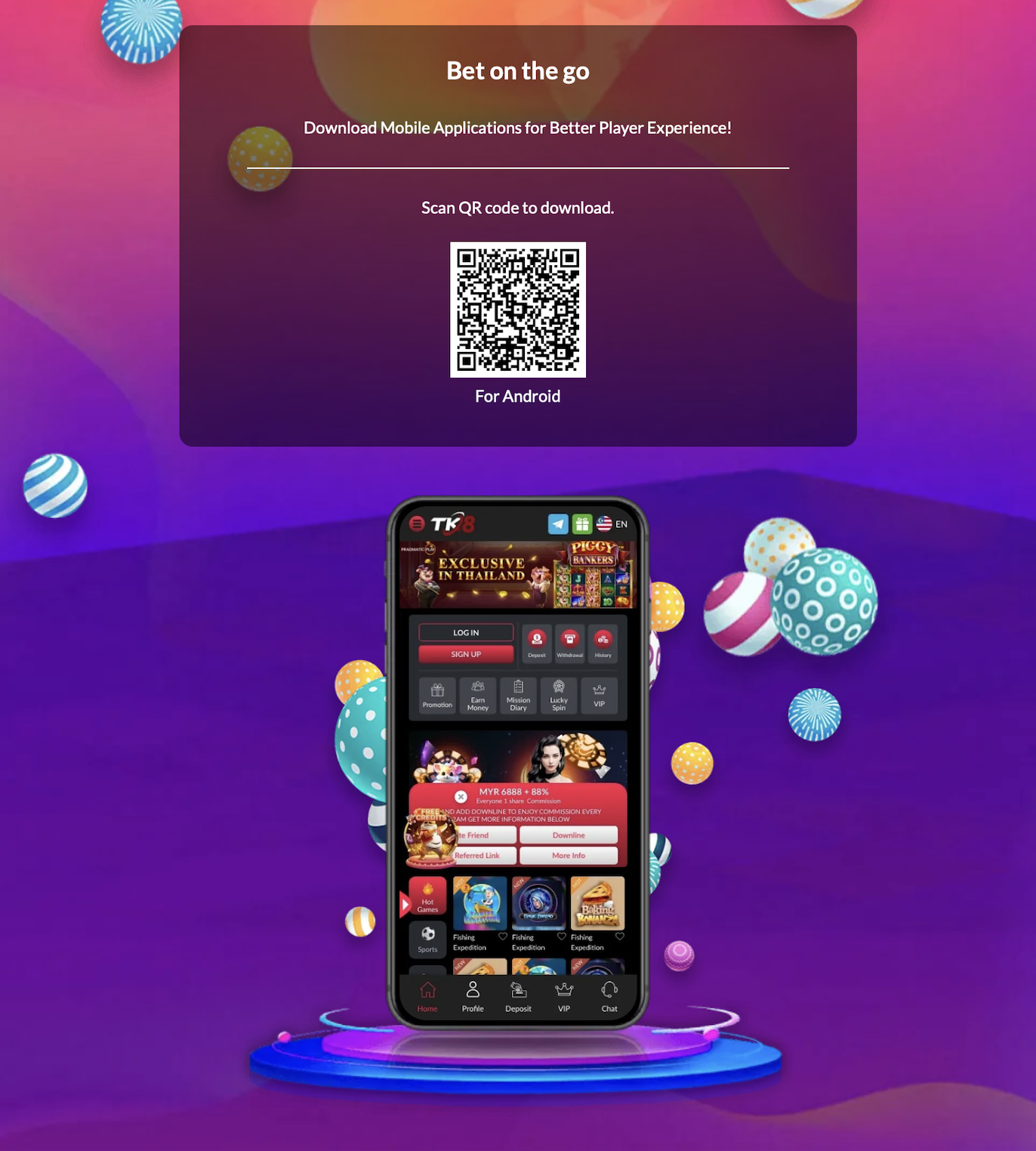
The supplied download landing page shows a QR code labeled for Android and presents the mobile application as the direct TK8 App option. Android users can therefore obtain the APK through the provided Android download route.
Access Through TKASH on Other Devices
For iOS and desktop environments, the supplied flow uses TKASH as the access layer. After installing the appropriate TKASH App, users can sign in, open the Services section and select the NEW TK8 icon to continue.
Use the Correct Download Route for Your Device
Before downloading, confirm whether you are using Android, iOS, Windows or macOS. Choosing the correct operating-system option helps avoid incompatible installers and unnecessary installation errors.
TK8 Android Download Steps
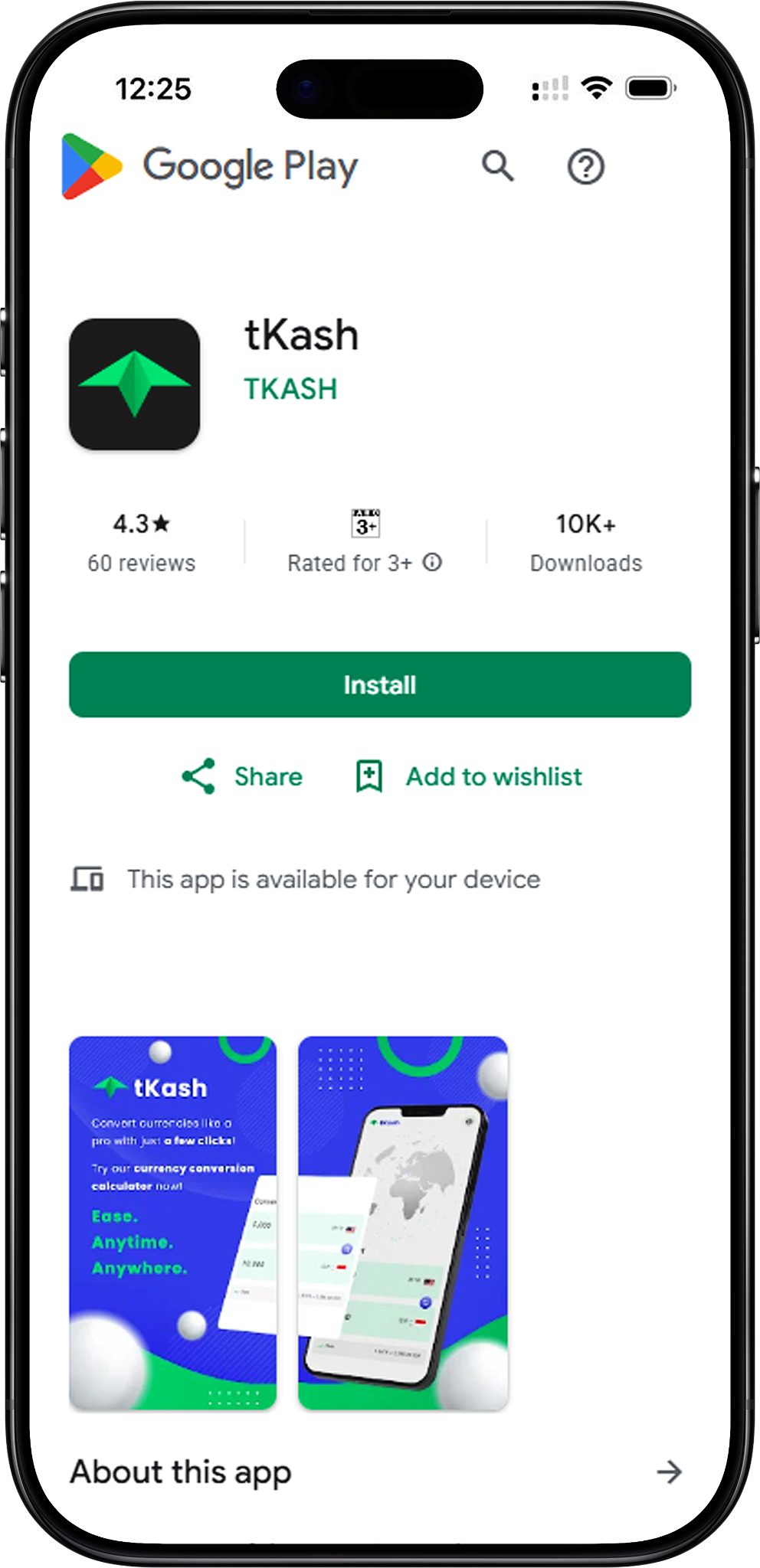
Step 1. Open the TK8 Download Page
Start from TK8 Download and select the available download-related button. This redirects you to the download landing page where the supported app options are presented.
Step 2. Choose the Android APK Option
On the landing page, select the Android download option or scan the displayed Android QR code. The supplied page identifies this route as the direct mobile application download for Android.
Step 3. Download the APK File
Allow the APK file to finish downloading before opening it. If the browser asks whether you want to keep the file, verify that you started the download from the intended platform page before continuing.
Step 4. Allow Installation When Required
Android may ask for permission to install apps from the browser or file manager used to open the APK. Review the device prompt carefully and enable the required permission only for the trusted installation source you are using.
Step 5. Install the Android App
Open the downloaded APK and follow the Android installation prompts. Wait until installation is complete before launching the app.
Step 6. Open the App and Continue
Launch the installed application and proceed with your existing account. New users can follow TK8 Register, while account holders can use TK8 Login for access guidance.
TK8 iOS Access Steps
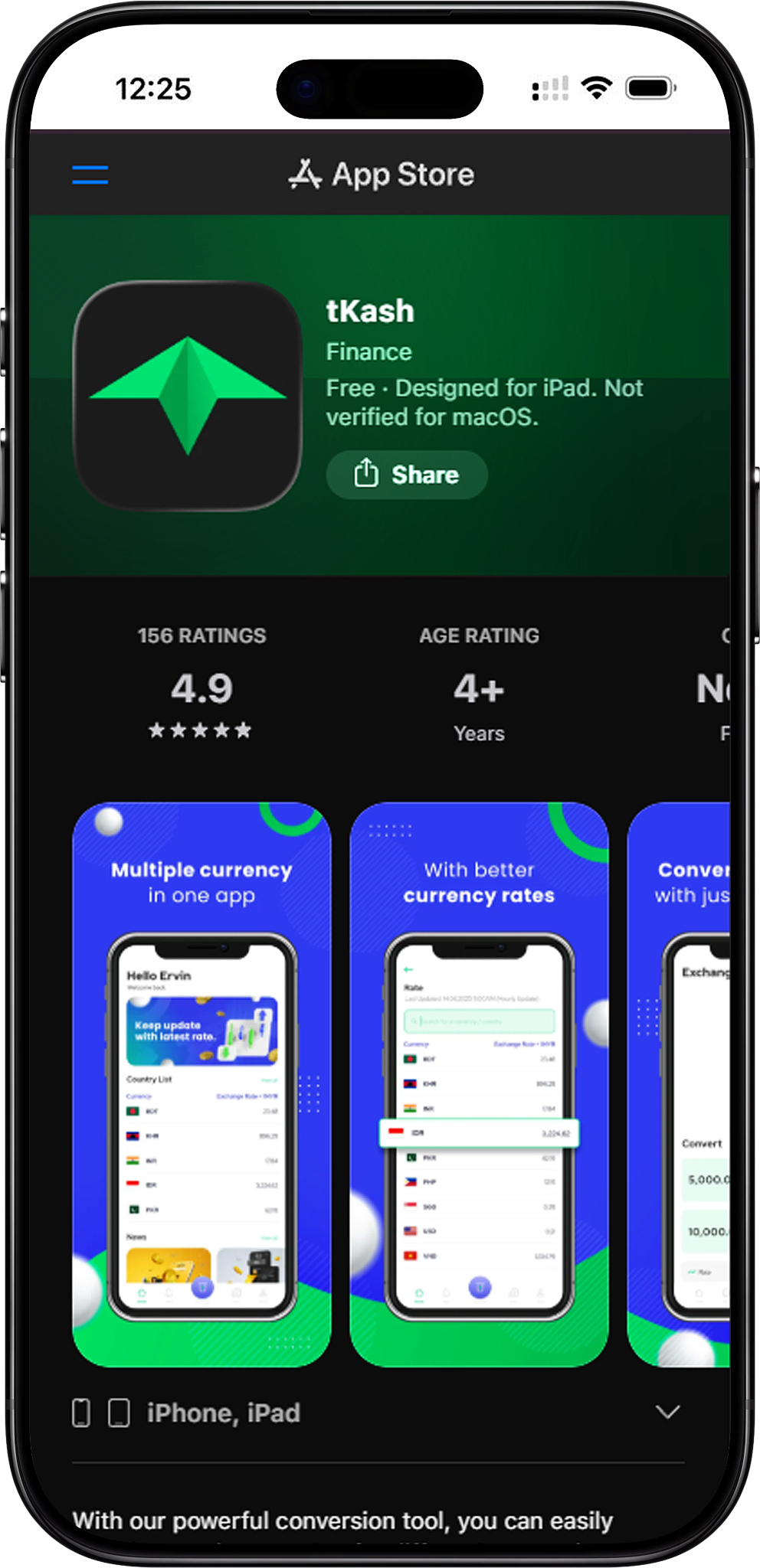
Step 1. Open the Download Landing Page
Go through TK8 Download and select the download button to reach the landing page containing the available operating-system options.
Step 2. Select the TKASH iOS Download Option
Because the supplied direct TK8 App route is currently shown for Android, iOS users should choose the TKASH iOS option on the landing page. This redirects to the appropriate iOS download destination for TKASH.
Step 3. Install TKASH on Your iPhone or iPad
Complete the TKASH installation using the destination provided for iOS. Follow the device prompts and make sure the installation finishes before opening the app.
Step 4. Sign In to TKASH
Open TKASH and sign in with the mobile number and verification process associated with your account. If you have not created an account yet, use TK8 Register first.
Step 5. Open NEW TK8 From Services
From the TKASH home screen, locate the Services section and select the NEW TK8 icon. This opens the platform through the TKASH access flow without requiring a separate direct iOS TK8 installation in the supplied setup.
TK8 Desktop Download Steps for Windows
Step 1. Visit the Download Landing Page
Begin at TK8 Download and use the download button to reach the landing page where device-specific TKASH options can be selected.
Step 2. Choose the TKASH Option for Windows Access
For Windows users, follow the TKASH option provided for the desktop-compatible route in the supplied setup. Select the appropriate download button rather than using the direct Android APK unless you are installing on an Android device.
Step 3. Download and Install TKASH
Download the installer provided for your Windows environment and complete the installation by following the on-screen prompts. Confirm that the installer comes from the intended download destination before running it.
Step 4. Sign In to TKASH
Open TKASH after installation and sign in with your registered credentials. Complete any verification step shown by the application before continuing.
Step 5. Select NEW TK8
Once inside TKASH, find the Services section and select NEW TK8. This is the access route shown in the supplied TKASH interface.
TK8 Desktop Download Steps for macOS
Step 1. Reach the Download Landing Page
Use TK8 Download to open the download landing page and review the available TKASH operating-system choices.
Step 2. Choose the TKASH Option for macOS Access
For macOS, select the TKASH option intended for the Apple desktop environment in the supplied flow. Avoid downloading an Android APK because APK files are intended for Android devices.
Step 3. Install TKASH on macOS
Complete the installation using the package or destination supplied for macOS. Follow the system prompts and review any security notices before granting installation permission.
Step 4. Open and Sign In to TKASH
Launch TKASH after installation and sign in with the account details associated with your profile. Complete any verification request displayed by the app.
Step 5. Open NEW TK8 From the Services Area
After reaching the TKASH home interface, select the NEW TK8 icon under Services to continue into the platform.
How to Open NEW TK8 Through TKASH
Step 1. Launch TKASH
Open the installed TKASH App on your device and complete the required sign-in process. The supplied interface shows the account home screen after successful access.
Step 2. Find the Services Section
Scroll or look through the home screen until you reach Services. The supplied example displays several connected services in this area.
Step 3. Select the NEW TK8 Icon
Tap or click the NEW TK8 icon shown under Services. This opens the gaming interface where Login and Sign Up options are available.
Step 4. Continue With Your Existing Account
Existing users should follow TK8 Login. New users can use TK8 Register to complete account creation before continuing.
TK8 Download QR and Installation Safety
Using the Android Download QR
The supplied landing page includes a QR code marked for Android. Scan it only when you intend to download the Android version, then verify the destination before accepting any file or installation prompt.
Check the File Type Before Installation
Android installers normally use the APK format. iOS, Windows and macOS follow different installation methods, so do not attempt to install an APK on an unsupported operating system.
Avoid Unknown Download Sources
Use the platform’s own download flow rather than copying installer files from unrelated third-party websites, chat groups or unknown file-sharing pages. Modified installers can create security and account risks.
Keep Your Device Updated
Use a currently supported operating-system version where possible and apply security updates before installing applications. Device updates can reduce compatibility and security issues during installation.
TK8 Download Troubleshooting
Android APK Will Not Download
Check the internet connection, available storage and browser permissions. Return to TK8 Download and start the download again only after confirming that the previous attempt did not complete.
Android Blocks the APK Installation
Android may block applications installed outside its usual app-distribution route. Review the security prompt, confirm the source and allow installation only if you intentionally downloaded the APK from the platform’s download flow.
QR Code Does Not Open
Make sure your camera or QR scanner can read the code and that the image is clear and fully visible. If scanning fails, use the corresponding download button on the landing page instead.
Cannot Find a Direct iOS App
The supplied material currently shows the direct TK8 App download for Android. For iOS access, follow the TKASH iOS option from the download landing page and open NEW TK8 from within TKASH.
Cannot Open NEW TK8 in TKASH
Confirm that you are signed in to TKASH and check the Services section again. If you still cannot access the service, review TK8 FAQs for general guidance or confirm that your installed TKASH version is current.
Downloaded the Wrong Operating-System Version
Remove the incompatible installer and return to the download page. Select the option intended for your actual device instead of attempting to force an Android, iOS, Windows or macOS package onto an unsupported system.
What to Do After Downloading
Register a New Account
If you have not created an account, follow TK8 Register for the registration process, including the TKASH access flow and account verification steps.
Sign In to an Existing Account
Existing users can follow TK8 Login to access their account through TKASH and select the appropriate username, mobile or email login method where available.
Explore Available Games
After successful access, visit TK8 Games to review the available categories, including Slot, Live Casino, Sports, Fishing, Card Game, Esports, Cockfight and Instant Win.
Review Promotions Before Opting In
Check TK8 Promotion for available offers and read each promotion’s eligibility, validity, wagering and withdrawal conditions before participating.
Review Responsible Gaming Information
Use Responsible Gaming to review safer-play information and account controls. Gambling involves financial risk and should only be used by adults who meet the legal requirements in their jurisdiction.
TK8 Download FAQs
How do I download the TK8 App on Android?
Open the download page, continue to the landing page, select the Android option or scan the Android Download QR, download the APK and follow the device installation prompts.
Is a TK8 APK available?
Yes. The supplied download material shows an Android QR route for the mobile application, which is the direct APK-based installation path described for Android users.
Can I download TK8 on iOS?
The supplied flow does not show a separate direct iOS TK8 package. iOS users can download TKASH through the appropriate iOS option and then select NEW TK8 from the Services section.
Can I access TK8 on Windows?
Windows users can follow the TKASH desktop route provided from the download landing page, install the suitable TKASH version and open NEW TK8 after signing in.
Can I access TK8 on macOS?
macOS users can follow the corresponding TKASH route on the download landing page and then use NEW TK8 from inside the TKASH Services section.
What is the TK8 Download QR used for?
The supplied QR code is labeled for Android and provides a convenient route to the Android download destination. Always check the destination before downloading or installing a file.
Do I need TKASH to open NEW TK8?
In the supplied access flow, TKASH provides the Services section containing the NEW TK8 icon. This route is especially relevant for devices where the direct Android APK is not used.
Where can I find the official download information?
Return to TK8 Home or the dedicated TK8 Download page. The official website can also be accessed at https://tk8official.my.
Download and Access TK8
Download the Android APK directly or install the appropriate TKASH version for your device, then open NEW TK8 from Services and continue with your registered account.