

TK8 Login Guide for Secure Account Access
Table of Contents
How TK8 Login Works Through TKASH
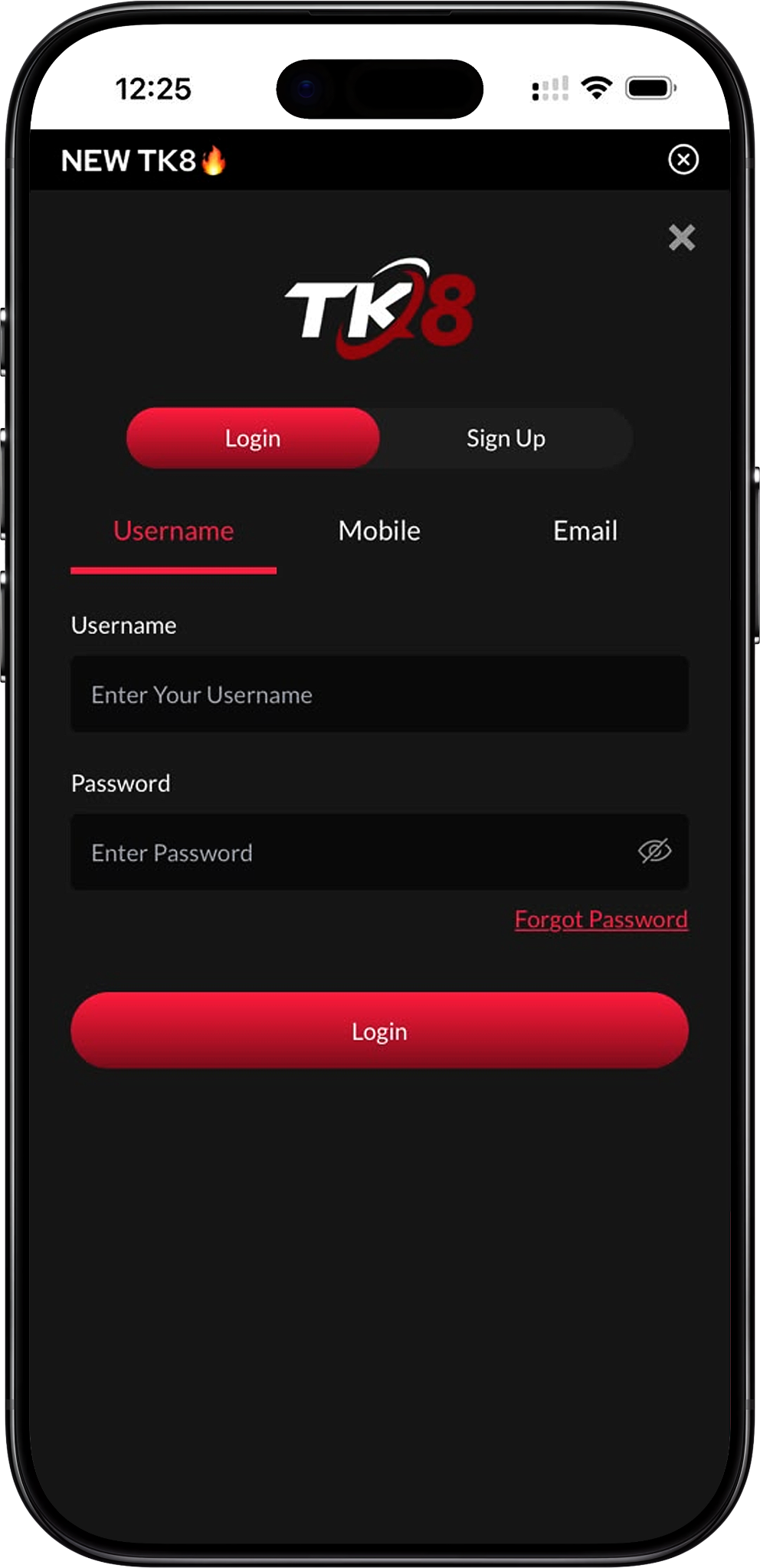
TK8 Login is accessed through the TKASH App in the supplied account flow. Users first sign in to TKASH with their registered mobile number and verification process, reach the TKASH home screen, and then select NEW TK8 from the Services section to open the gaming platform.
TKASH Comes Before the Gaming Login
The supplied screenshots show TKASH as the first access layer. Existing users enter their registered phone number on the TKASH Login screen and use the available verification process before reaching the main app interface. From there, NEW TK8 can be opened as a connected service.
Existing Account Versus New Registration
Users who already have an account can continue with TK8 Login. New users who have not completed account creation should first use TK8 Register before attempting to sign in.
TK8 Login Steps Through the TKASH App
Step 1. Make Sure You Have a TKASH Account
Before trying to access the platform, confirm that your TKASH account has already been created. If you are new, follow TK8 Register to complete the required account setup before continuing with the login process.
Step 2. Download and Open the TKASH App
Install the required app by following TK8 Download. After installation, open the TKASH App on your device and select the appropriate language if needed.
Step 3. Enter Your Registered Phone Number
On the TKASH Login screen, enter the mobile number associated with your account. The supplied example displays Malaysia’s +60 country code. Check the country code and phone number carefully before proceeding.
Step 4. Request the Verification Code
Select Send verification code after entering the correct phone number. Use only the verification code sent to your registered device, and never disclose a one-time code to another person.
Step 5. Enter the TKASH Home Screen
After successful verification, continue to the TKASH home interface. The screen provides wallet information, transactions and a Services section containing connected platforms.
Step 6. Select NEW TK8 From Services
Locate the NEW TK8 icon under Services and select it. This opens the TK8 interface where Login and Sign Up options are displayed. Existing account holders should choose Login.
Step 7. Choose Your Preferred Login Method
The supplied login interface provides Username, Mobile and Email tabs. Select the login method that matches the credentials linked to your account, enter the required identifier and password, and then select Login.
TK8 Login Methods for Existing Accounts
TK8 supports three login options in the supplied interface: username, mobile number and email. Each method uses a password together with the selected account identifier, allowing users to choose the credential type associated with their existing account.
Username Login
Choose Username when you know the username assigned to or created for your account. Enter the username and password exactly as registered, then select Login.
Mobile Login
Choose Mobile to sign in with the phone number associated with the account. The supplied screen shows a +60 selector for Malaysian numbers together with a password field.
Email Login
Choose Email when your account is connected to an email address. Enter the registered email and password, check for typing errors and select Login.
How to Use Username Login
Step 1. Select the Username Tab
After opening NEW TK8 through the TKASH App, make sure Login is selected and then choose Username from the available login tabs.
Step 2. Enter Your Username
Type the username associated with your account into the Username field. Usernames should be entered exactly as registered, including any letters or numbers used during account setup.
Step 3. Enter Your Password
Enter the password linked to that username. Use the visibility control only when needed and make sure other people cannot see your credentials on the screen.
Step 4. Select Login
Review the entered username and password, then select Login. If the credentials are valid, the account should proceed to the available member interface.
How to Use Mobile Login
Step 1. Select the Mobile Tab
Choose Mobile on the Login screen when you want to access the account with its registered phone number.
Step 2. Check the Country Code
Confirm that the displayed country code matches the phone number registered to your account. The supplied interface shows +60 for Malaysia, but users should rely on the details associated with their own account.
Step 3. Enter the Phone Number and Password
Type the registered mobile number and corresponding password in the provided fields. Double-check both before selecting Login because an incorrect phone number or password will prevent access.
Step 4. Continue to Your Account
Select Login after confirming the details. If access fails, avoid repeatedly trying random passwords and use the available password-recovery option instead.
How to Use Email Login
Step 1. Select the Email Tab
Choose Email from the login options if an email address has been associated with your account.
Step 2. Enter the Registered Email
Enter the full email address used for the account. Check for spelling mistakes, missing characters or an incorrect email domain before continuing.
Step 3. Enter Your Password
Type the password associated with the email account credential. Passwords are case-sensitive when the platform applies case-sensitive authentication, so enter the details exactly as created.
Step 4. Select Login
Review both fields and select Login. Use TK8 FAQs if you need general account guidance after checking your credentials.
TK8 Password and Account Access Help
Forgot Your Password
The supplied login screen includes a Forgot Password option below the password field. Use this recovery route when you cannot remember the existing password rather than creating another account solely to regain access.
Username Login Does Not Work
Confirm that Username is the selected tab and check the spelling of the account name. Make sure there are no unintended spaces and that the password belongs to the same account.
Mobile Login Does Not Work
Check the country code and registered mobile number first. If the phone number has changed or is no longer available, use the platform’s supported account-recovery options rather than entering unrelated numbers.
Email Login Does Not Work
Verify that the email is the one linked with the account and confirm that it is entered correctly. If you have several email addresses, avoid guessing repeatedly because the correct credential should match the original account information.
TKASH Verification Code Does Not Arrive
Confirm the mobile number and country code, ensure the device can receive messages and allow time for delivery before requesting another code. Repeated requests may not resolve an incorrect number or network issue.
NEW TK8 Is Not Visible in TKASH
Make sure you have successfully signed in to the TKASH App and check the Services section on the home screen. You can also review TK8 Download to confirm that you are following the supported app access flow.
What to Do After TK8 Login
Review the Main Gaming Categories
After signing in, use TK8 Games to explore the available game sections. The navigation includes Slot, Live Casino, Sports, Fishing, Card Game, Esports, Cockfight and Instant Win.
Check Available Lottery Information
Users interested in number-draw content can visit TK8 Lottery to review the available lottery categories, results or related platform information before participating.
Review Promotions and Bonus Conditions
Visit TK8 Promotion to see current offers. Read each promotion’s eligibility, validity period, wagering requirements, withdrawal rules and other applicable conditions before opting in.
Manage Deposits and Withdrawals
Use TK8 Deposit and TK8 Withdrawal for account transaction guidance. Always verify the displayed payment details and conditions before confirming a transaction.
Protect Your Account
Keep login credentials private, avoid sharing verification codes and sign out on shared devices. Review Privacy Policy for information about account data and Responsible Gaming for safer-play guidance and available controls.
TK8 Login FAQs
How do I log in to TK8?
Sign in to the TKASH App with your registered mobile number, open NEW TK8 from Services, select Login and choose Username, Mobile or Email. Enter the corresponding account identifier and password, then select Login.
Do I need the TKASH App to access TK8?
Based on the supplied login flow, TKASH is used as the access point before opening NEW TK8. Users first enter the TKASH App and then select the NEW TK8 service.
Can I log in with a username?
Yes. The supplied interface includes a Username tab where existing users can enter their username and password.
Can I log in with my mobile number?
Yes. The Mobile tab accepts a registered phone number together with the account password. The supplied example displays Malaysia’s +60 country code.
Can I log in with an email address?
Yes. The Email tab provides fields for a registered email address and password. Use the email that is actually linked to your account.
What if I forget my password?
Select Forgot Password from the login screen and follow the available account-recovery instructions. Avoid creating duplicate accounts simply because the existing password has been forgotten.
What should I do if I do not have an account?
Complete TK8 Register first. Registration is intended for new users, while the login page is for accounts that have already been created.
Where can I find the official access point?
Use TK8 Home to return to the main platform information and navigation. The official website can also be accessed at https://tk8official.my.
Where can I get additional account help?
Visit TK8 FAQs for common questions or review About Us and Terms and Conditions for additional platform information and account conditions.
Access Your TK8 Account
Sign in to the TKASH App, open NEW TK8 from Services and use your registered username, mobile number or email together with your password to access your account.