

TK8 Register Guide for New Account Sign Up
Table of Contents
How TK8 Registration Works Through TKASH
TK8 registration begins with a TKASH account rather than directly from the gaming interface. New users first create their TKASH account, install the TKASH App, sign in and then open NEW TK8 from the Services section. From there, the TK8 Sign Up screen provides the fields required to create a gaming account.
Why TKASH Is Part of the Registration Process
TKASH acts as the access point shown in the registration flow. The initial account form requests an account display name and phone number and can include a referral code. After completing this stage, users can continue through the TKASH App to reach NEW TK8.
Register Before Trying to Sign In
New users should complete TK8 Register before attempting TK8 Login. Existing users who already have their account credentials can proceed directly to the login instructions instead.
TK8 Register Steps From TKASH to Sign Up
Step 1. Create Your TKASH Account
Start the registration process from TK8 Register. On the TKASH registration form, enter an account display name and a valid mobile number. If you received a referral code or QR invitation, verify that the displayed referral information is correct before selecting Register.
Step 2. Download the TKASH App
After the TKASH account has been created, install the app required for the next stage. Follow TK8 Download for the available download instructions and device guidance before signing in to TKASH.
Step 3. Sign In to the TKASH App
Open the installed TKASH App and sign in with the account created in the previous step. Confirm that you have reached the main account screen before continuing. This screen provides access to services linked with the account.
Step 4. Open NEW TK8 From Services
From the TKASH home screen, locate the Services section and select the NEW TK8 icon. This opens the gaming interface where new users can continue to the account registration screen.
Step 5. Select Sign Up
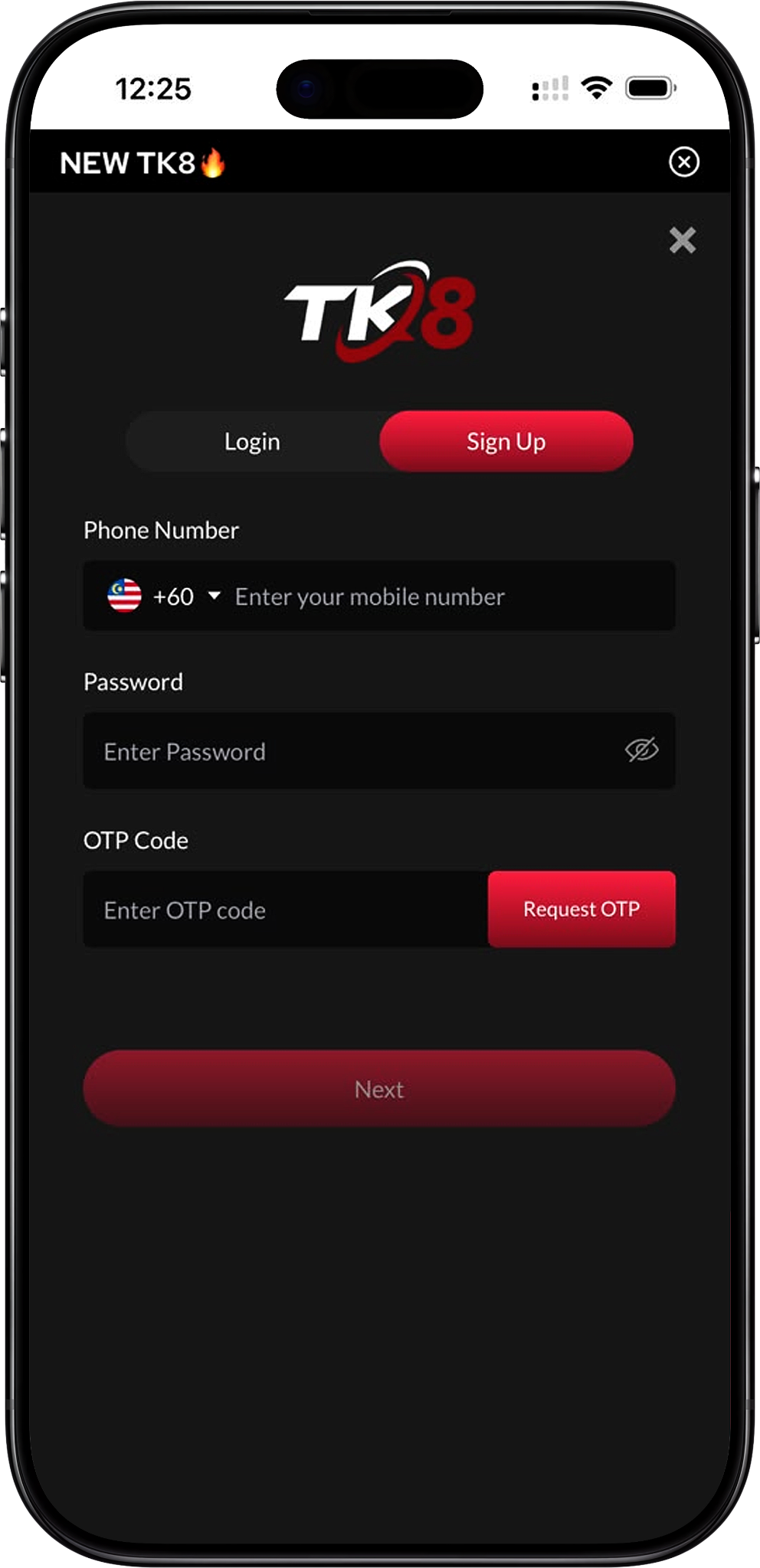
When the NEW TK8 interface opens, choose Sign Up rather than Login. The registration screen requests a Malaysian mobile number beginning with the +60 country code, a password and an OTP code for verification.
Step 6. Request and Enter the OTP Code
Enter the mobile number you want associated with the account, create a password and select Request OTP. Enter the received verification code in the OTP Code field, check the details carefully and select Next to continue the TK8 Sign Up process.
Step 7. Complete Registration and Access Your Account
Follow the remaining on-screen instructions until account creation is confirmed. After registration, use TK8 Login when returning to the platform. Do not repeatedly create accounts if a registration attempt is pending; troubleshoot the existing attempt first.
Information Needed for TK8 Sign Up
Mobile Phone Number
A working mobile number is needed for the account and OTP verification process. The registration interface shown uses Malaysia’s +60 country code. Check the number before requesting an OTP because an incorrect number can prevent the verification message from reaching you.
Account Password
Create a password that is not reused on unrelated services. Keep it private and avoid sharing passwords or OTP codes with other people, including anyone claiming that they need the information to complete registration for you.
OTP Verification Code
The OTP is a temporary verification code requested during registration. Enter only the code received for your current registration session and never publish or forward it to another person.
Referral Code
A referral code may be provided when joining through an invitation. If a code has already been populated through a referral link or QR code, review it before submitting the registration form rather than replacing it without knowing which invitation you are using.
How to Use a TK8 Referral Code and QR Code
Register With a Referral Code
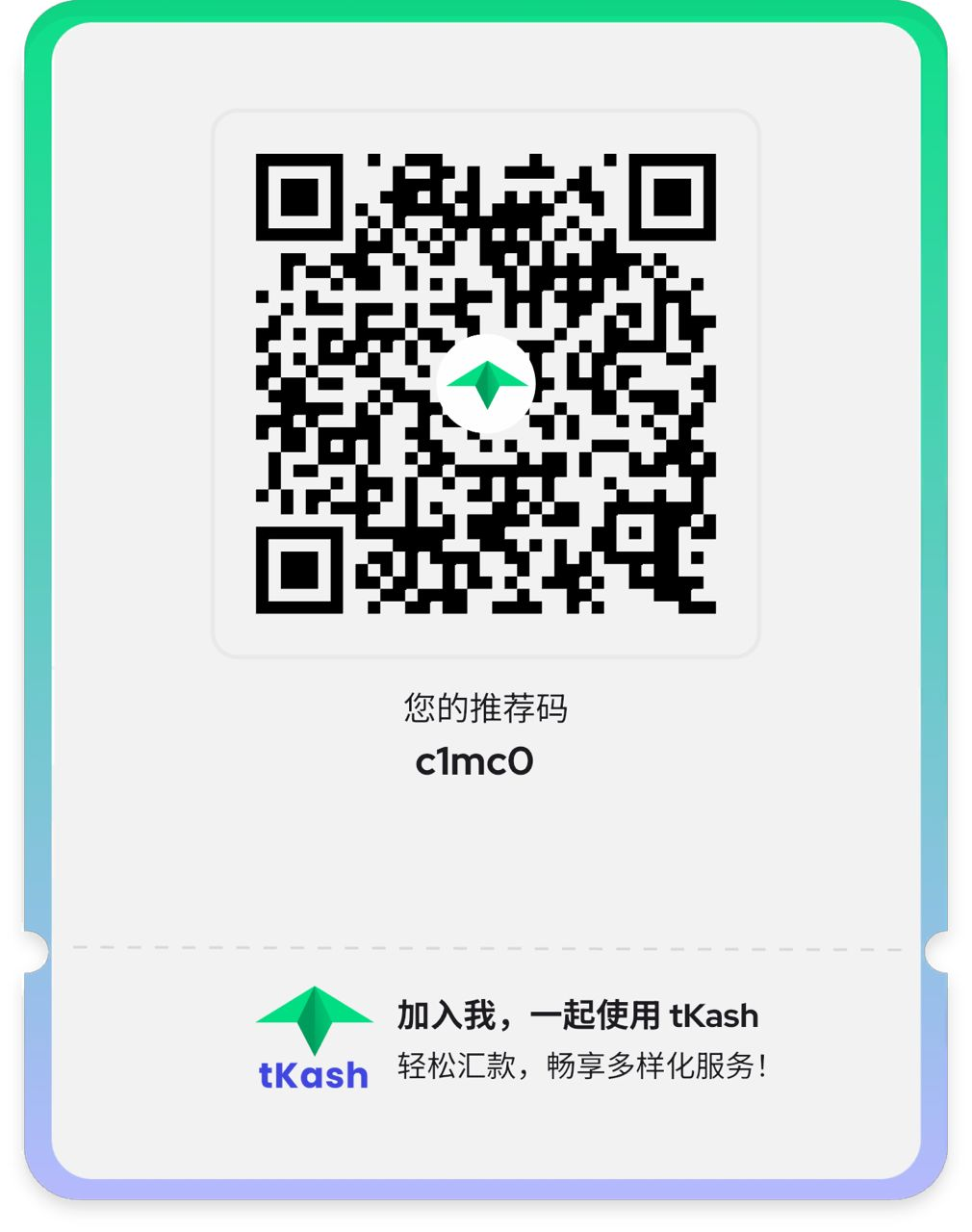
The supplied TKASH registration example displays referral code c1mc0. When using an invitation, confirm the referral code displayed on your own registration screen before proceeding. A referral code identifies the invitation path and should not be confused with your password or OTP.
Register With a QR Code
A TK8 QR Code or TKASH referral QR can provide a convenient route into the referral registration flow. Scan the QR code with a compatible device, review the destination and confirm that the expected referral information appears before submitting personal account details.
Check Referral Details Before Registration
If you reached registration from a shared QR code or invitation, verify the referral information before creating the account. Avoid scanning unknown or altered QR codes, and do not enter passwords or verification codes on pages you do not trust.
TK8 Registration and OTP Troubleshooting
OTP Code Does Not Arrive
First confirm that the country code and mobile number are correct and that the phone can receive messages. Allow reasonable time for delivery before requesting another OTP. Repeated requests in a short period may not help if the underlying phone-number or network issue remains unresolved.
Cannot Find NEW TK8 in TKASH
Confirm that you are signed in to the TKASH App and check the Services section shown on the home screen. If you still cannot locate the service, review TK8 Download to make sure you are using the appropriate access method or app version.
Already Have an Account
Users with an existing account generally do not need to repeat registration. Use TK8 Login and enter the credentials associated with the existing account instead.
Registration Details Are Incorrect
Review the mobile number, password requirements, OTP and any referral information displayed on screen. If the interface reports an error, correct the affected field before submitting again rather than repeatedly restarting the entire registration process.
What to Do After TK8 Registration
Sign In and Review Your Account
Once account creation is complete, follow TK8 Login for sign-in guidance. Check that your account details are correct and keep your password and verification information secure.
Explore Available Games
After accessing your account, TK8 Games provides the main route to available categories, including Slot, Live Casino, Sports, Fishing, Card Game, Esports, Cockfight and Instant Win.
Review Promotions Before Participating
Check TK8 Promotion for current campaign information and read the applicable eligibility, wagering, validity and withdrawal conditions before opting in. Available offers and their terms may change over time.
Manage Account Transactions
Use TK8 Deposit and TK8 Withdrawal for transaction guidance. Check the displayed payment instructions, account details, processing information and applicable conditions before confirming a transaction.
Use Responsible Gaming Controls
Registration should be followed by informed account use. Read Responsible Gaming for information about safer play, personal limits and available controls. Gambling involves financial risk and should only be used by adults who meet the applicable legal-age requirements in their jurisdiction.
TK8 Register FAQs
How do I register a TK8 account?
First create a TKASH account, download and sign in to the TKASH App, open NEW TK8 from Services, select Sign Up, enter the requested mobile number and password, request the OTP and complete the on-screen verification steps.
Do I need TKASH before registering?
Based on the supplied registration flow, yes. The process begins with TKASH account registration and continues through the TKASH App, where NEW TK8 can be opened from the Services section.
Where can I find NEW TK8 after signing in to TKASH?
Look under Services on the TKASH home screen and select the NEW TK8 icon. The gaming interface then provides Login and Sign Up options.
What information does the TK8 Sign Up screen request?
The supplied Sign Up screen shows fields for a phone number, password and OTP code. A Request OTP button is provided to obtain the verification code before continuing.
Can I use a referral code when registering?
Yes. The supplied TKASH registration flow includes a Referral Code field, and the provided example shows a referral invitation using code c1mc0. Always confirm the code displayed on your own registration screen before submission.
What should I do if I already have an account?
Do not create another account simply to regain access. Follow TK8 Login first, and use the available account assistance route if you cannot access your existing credentials.
Where can I get more help?
Visit TK8 FAQs for common account questions or review TK8 Home for the main navigation. The official site can also be accessed at https://tk8official.my.
Complete Your TK8 Registration
Create your TKASH account, access NEW TK8 through the app and follow the mobile and OTP verification steps to finish setting up your account securely.